
How to use Veontra
Veontra is designed to be straightforward: a clear workflow from upload to export, with live chat support when you need help from our team.
Your workspace
After you sign in, the dashboard gives you quick access to document extraction, saved templates, and support. Built-in live chat connects you directly with our team whenever you have a question.
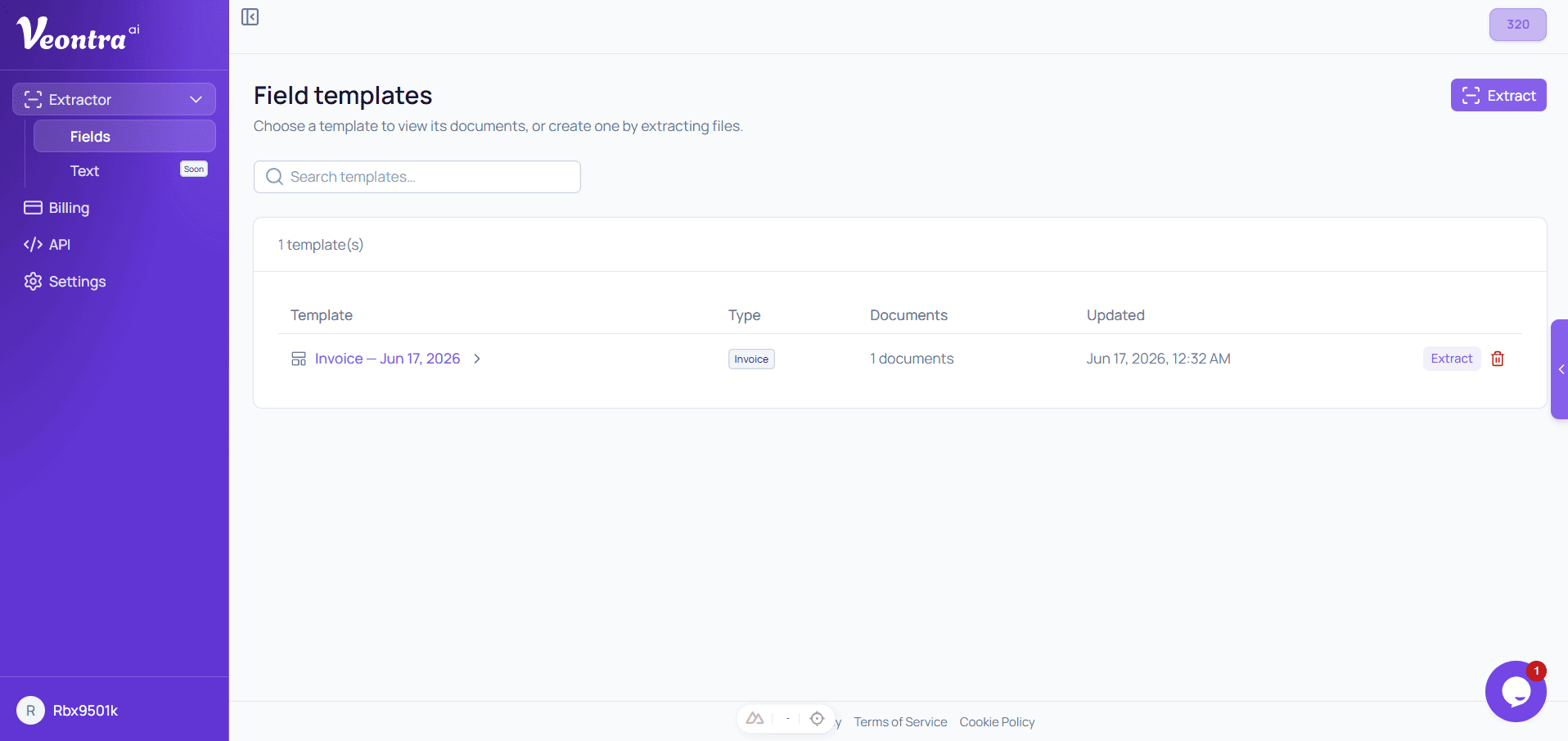
Creating templates
Templates define what Veontra extracts from your documents. Choose one of five built-in types — invoice, receipt, resume, bank statement, or ID document — or create a custom type for your own workflow. You can also set the document language so extraction matches the source material.
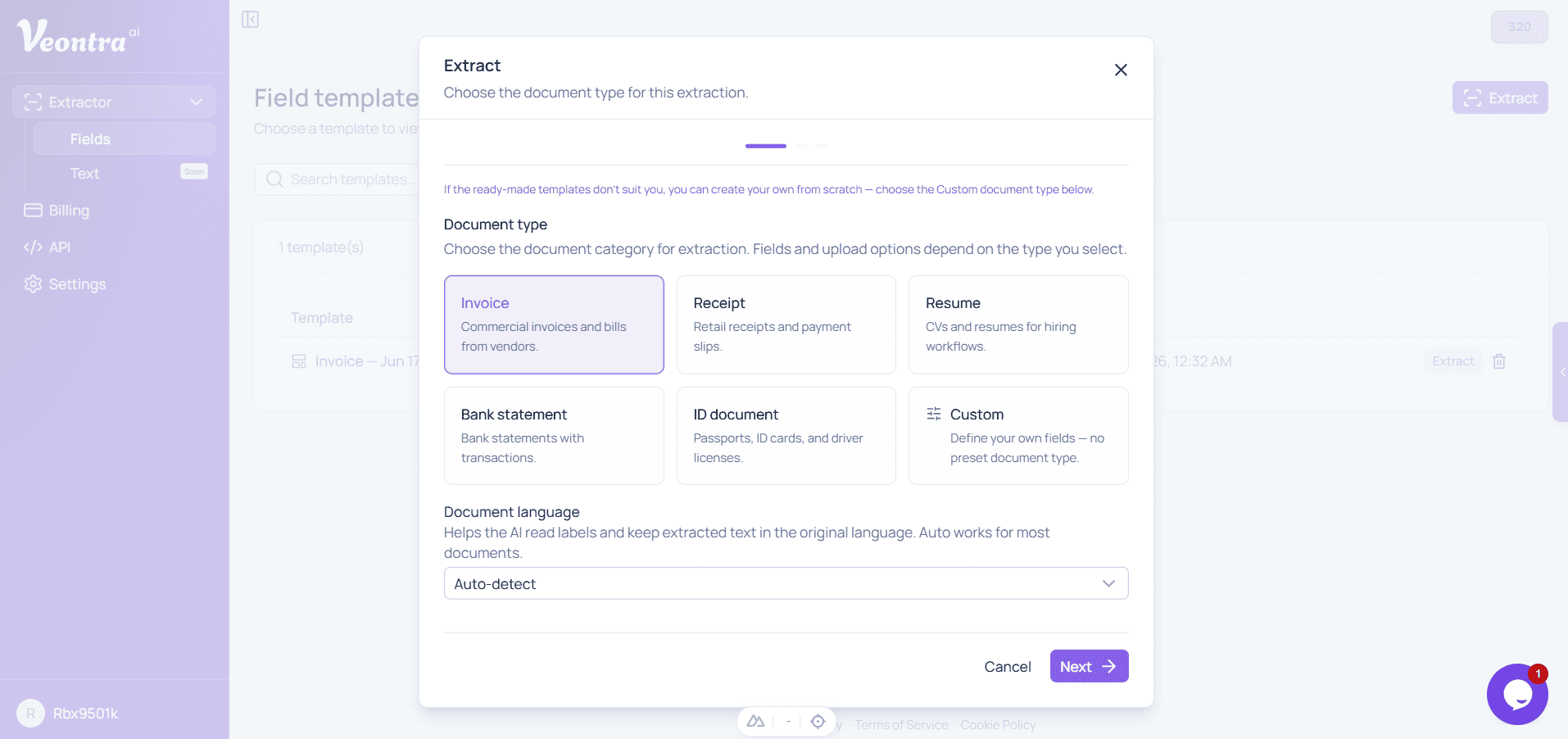
Choosing fields
In the next step, review the fields Veontra will extract. Remove fields you don't need or add new ones to match your process.
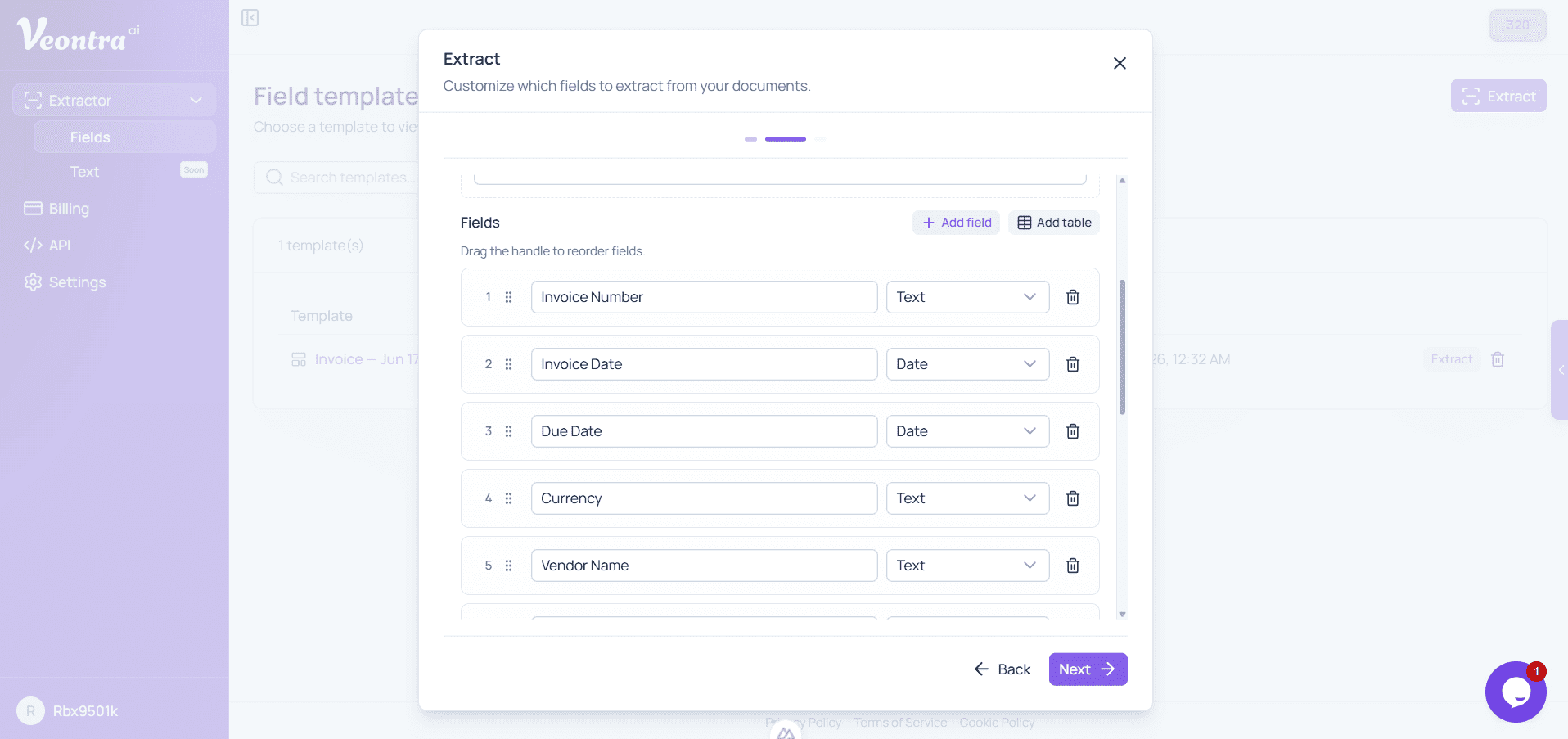
Uploading documents
Upload up to 10 files at once. After upload, each document is processed automatically — you can watch the status update in real time. Once a template is saved, you can upload directly from step 3 on the template page without rebuilding it every time. You can still walk through all steps whenever you want to adjust settings.
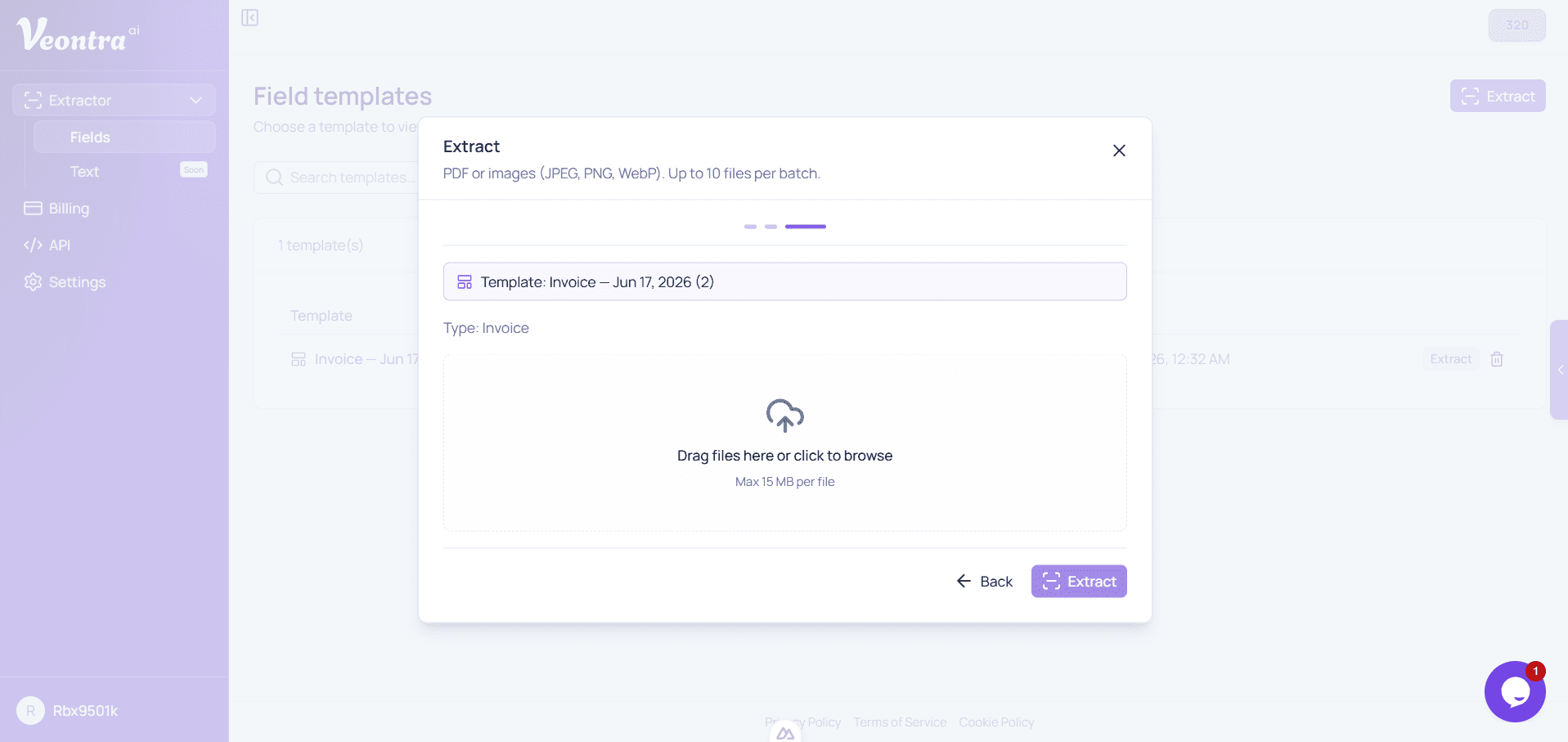
Human-in-the-loop review
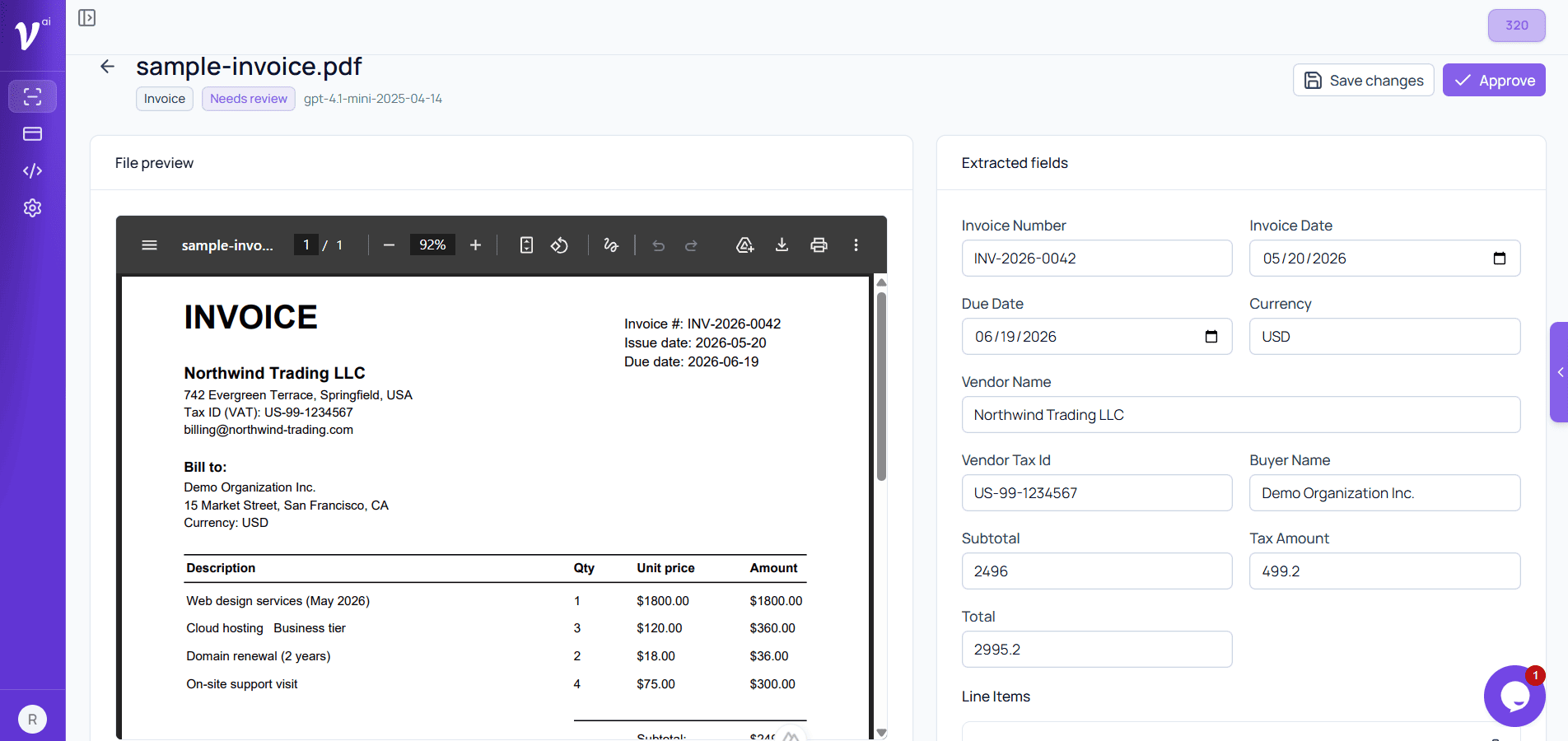
The approval page lets your team compare extracted values side by side with the original document. Edit any field, then approve when everything looks correct — nothing is exported until you sign off.
Exporting approved documents
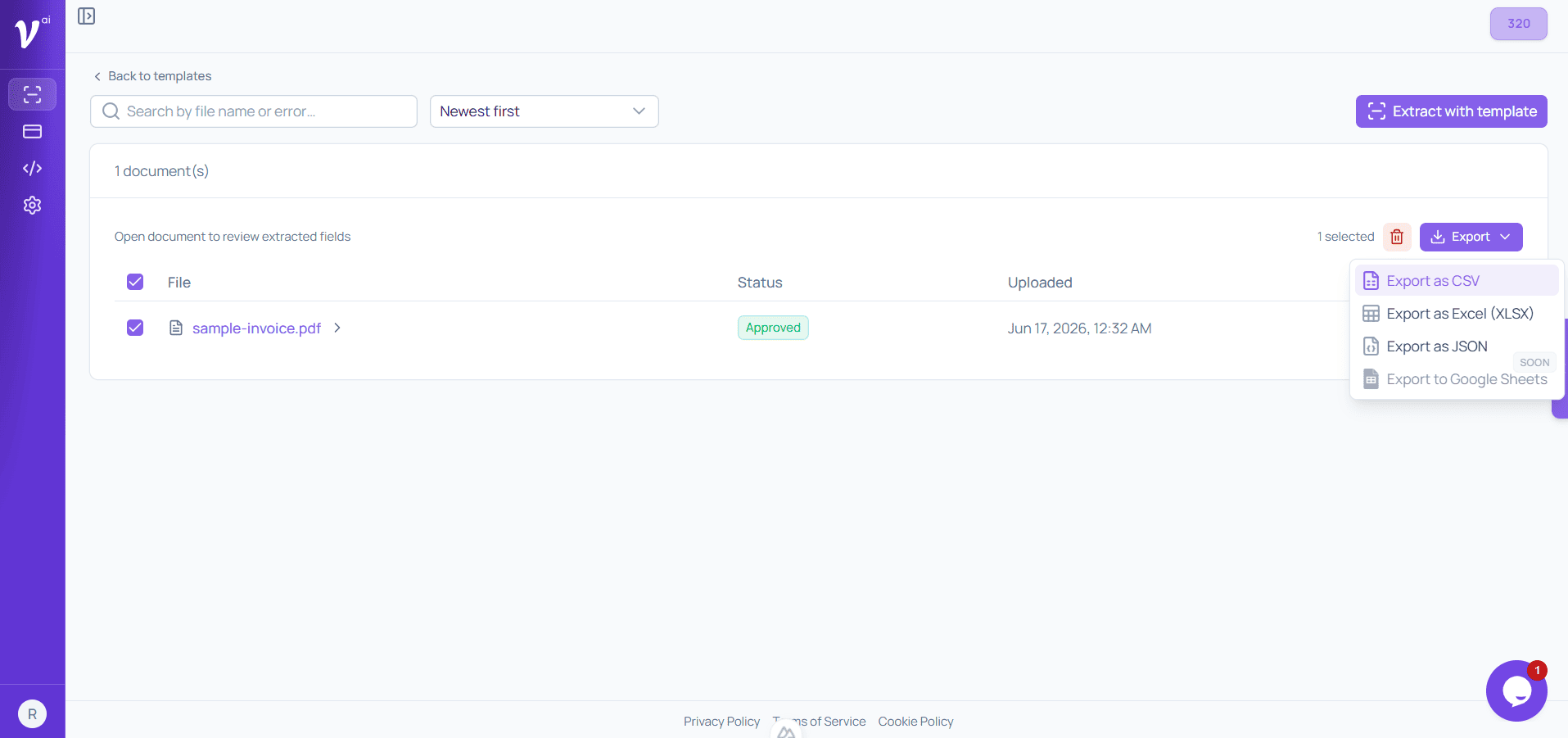
Back on the template page, select approved documents and export them in the format you need. Veontra supports CSV, XLSX, and JSON. Google Sheets export is coming soon.
Organizations & teams
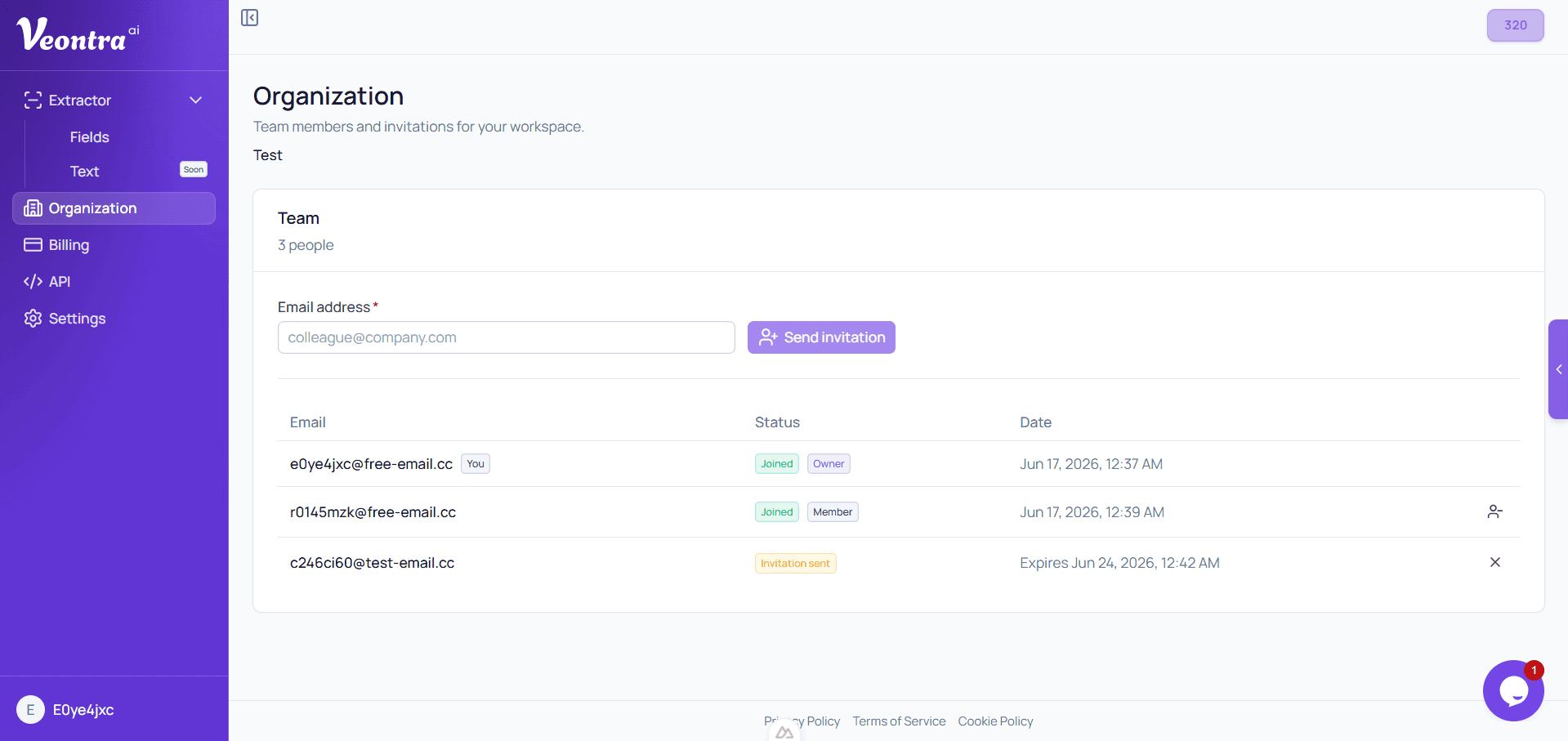
If you registered as an organization, the Organization section lets you invite teammates by email. As the owner, you purchase credits that are shared across everyone in the organization — one billing account for the whole team.
API & webhooks
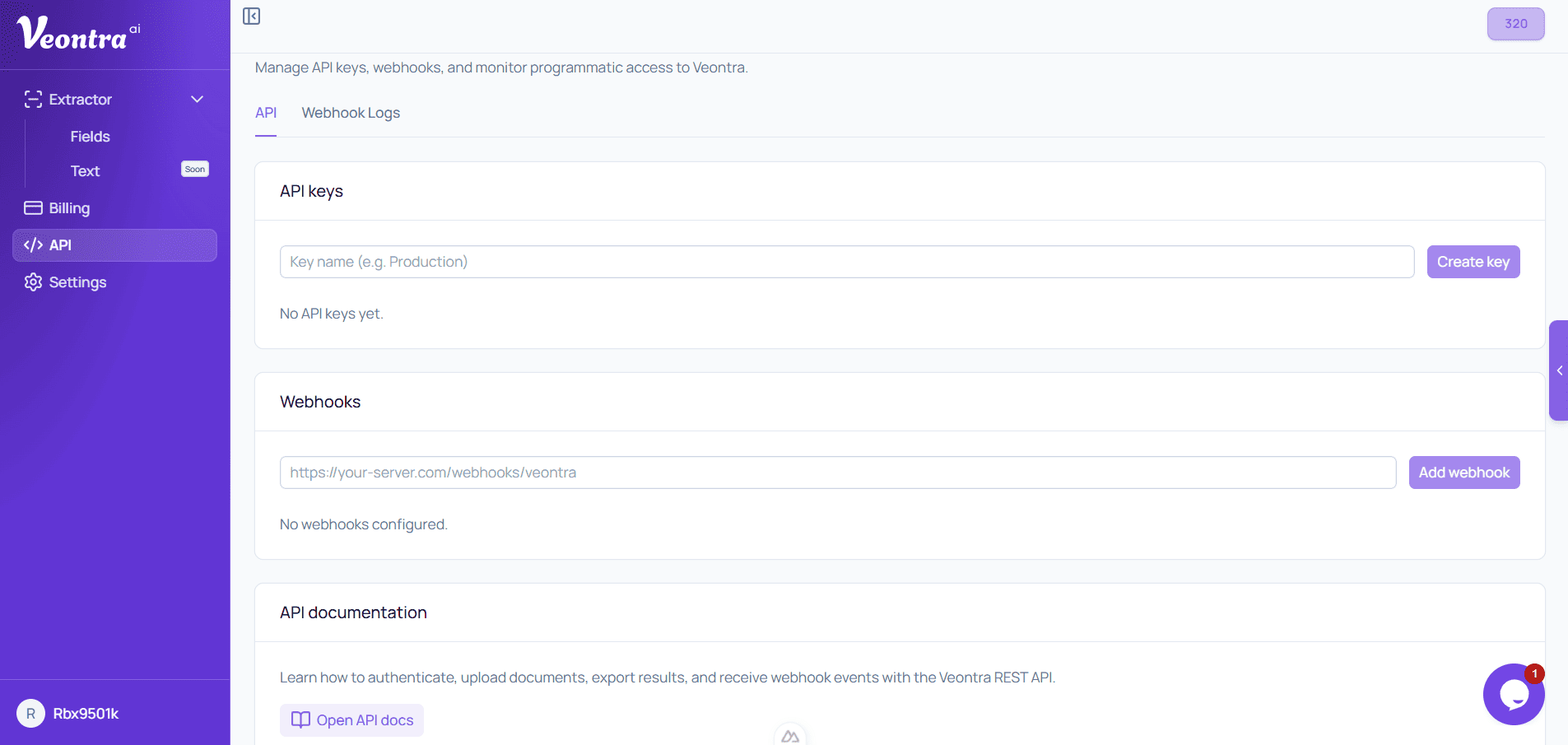
The Developer section lets you create API keys and webhook endpoints. Full API documentation is available for integrating Veontra into your own applications, along with webhook delivery logs for debugging.
Profile settings
In Settings you can update your profile, change your password, and manage account preferences.
Billing & transactions
The Billing section makes it easy to purchase credits on your own schedule and review all past transactions. Download invoices whenever you need them.
Still have questions? Check the FAQ