
Audio transcription in Veontra
Veontra now transcribes audio files with the same human-in-the-loop workflow you already use for documents. AI generates timestamped segments; your team edits, approves, and exports — nothing ships until you sign off.
What audio transcription does
Upload MP3, WAV, M4A, and other common formats. Veontra runs speech-to-text, splits the result into timestamped segments, and optionally identifies speakers or translates each segment to another language. Credits are billed per minute of audio, with optional add-ons for diarization and translation.
Uploading audio
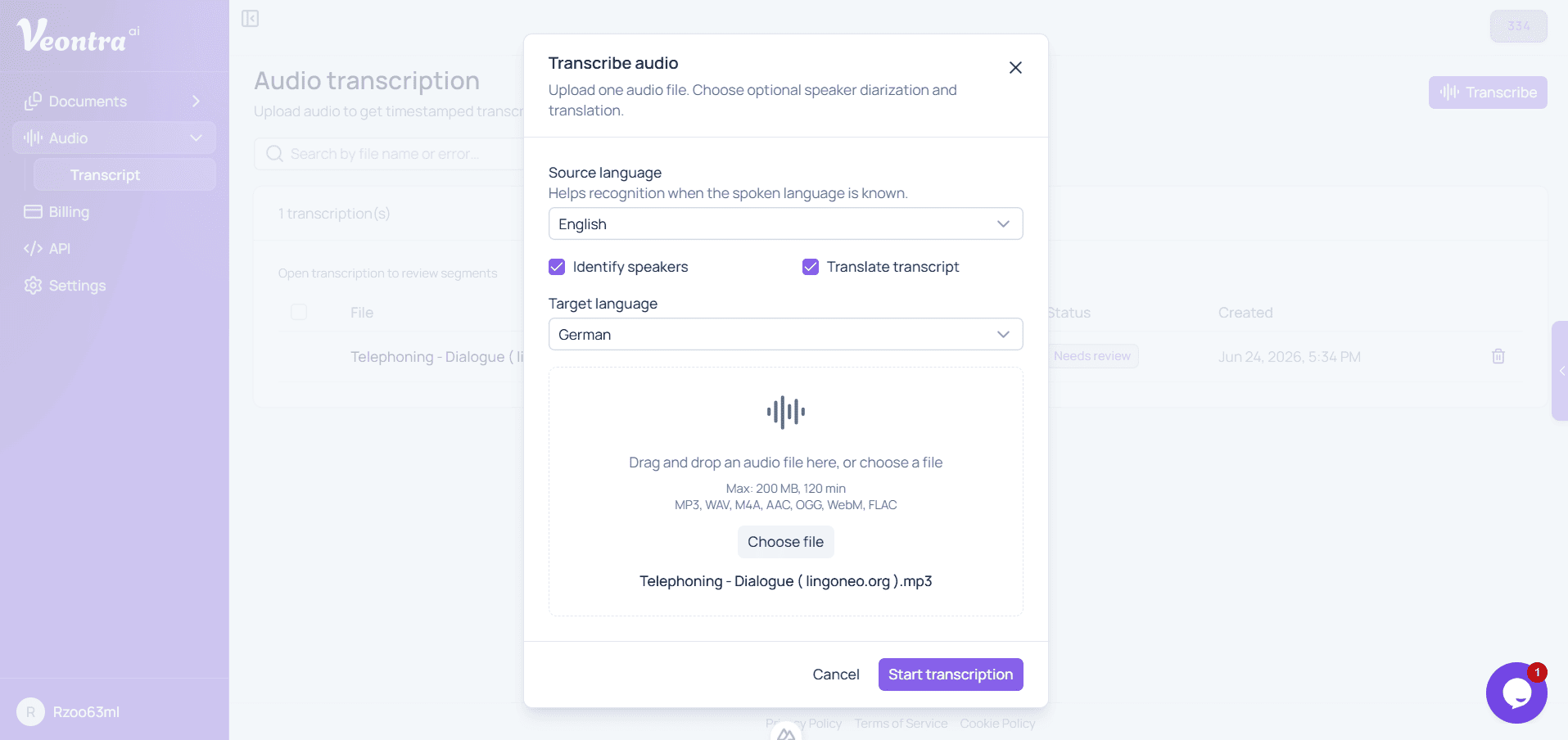
Open Audio → Transcript in the dashboard and click Transcribe. Choose the source language (or auto-detect), turn on speaker diarization or translation if you need them, then upload one file. Processing starts immediately — status updates appear in the list and over WebSocket while you wait.
Review with waveform playback
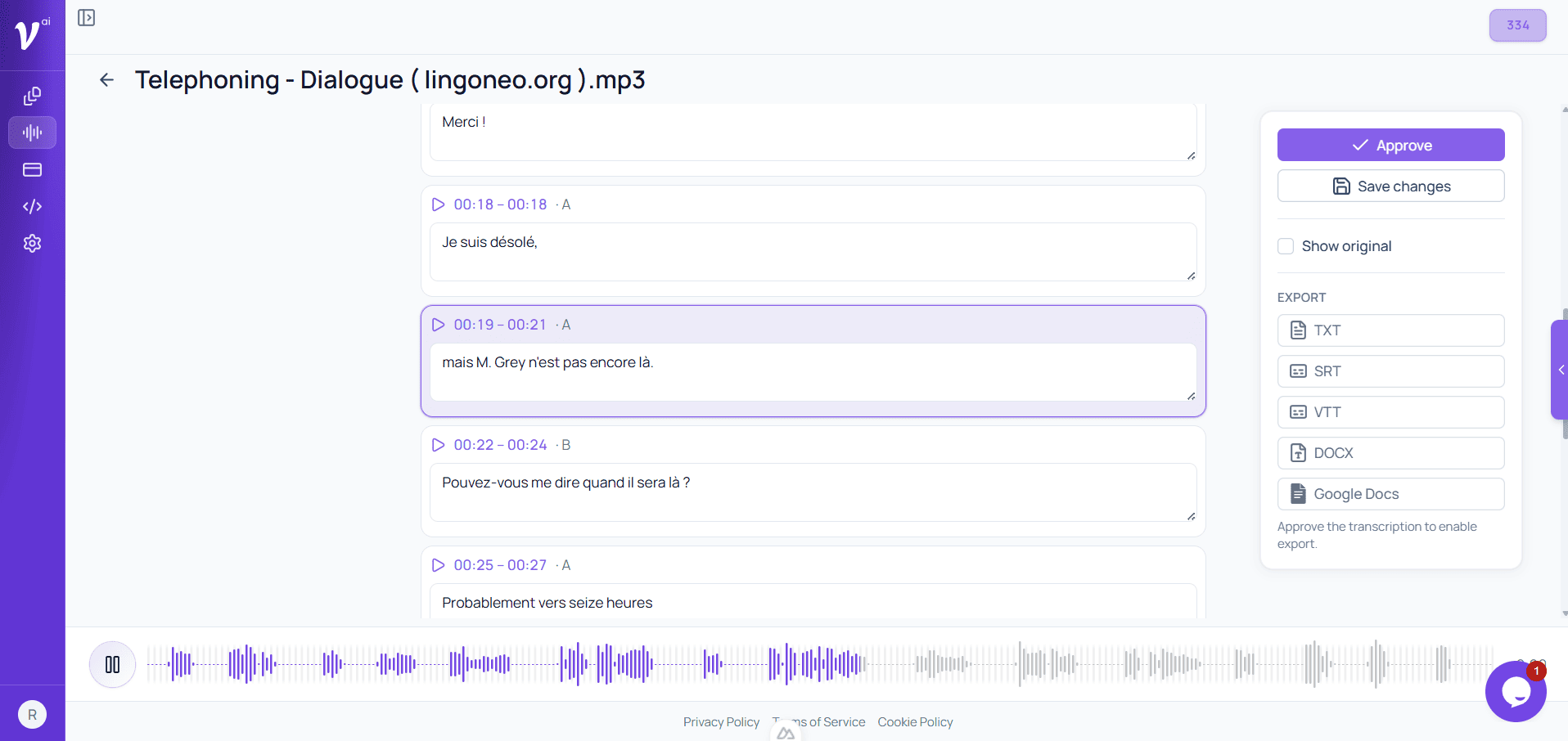
When transcription finishes, open the file to review segments side by side with the audio player. Click a timestamp to jump in the waveform; the active segment highlights as playback moves. Edit original or translated text, save drafts, then approve when the transcript is ready. Export stays locked until approval — same trust model as document extraction.
Export formats
Approved transcripts export to TXT, SRT, VTT, or DOCX for subtitles and archives. Google Docs export creates a document in your connected account. Bulk export from the list works the same way as single-file export from the review page.
Credits & pricing
Audio uses credits per minute (minimum one minute): base transcription, plus optional per-minute charges for speaker diarization and segment translation. See the full breakdown on the Credit services page before you upload long files.
Try it free
No account is required for a one-minute demo on the marketing site. When you're ready for full-length files, team review, and exports, start a free trial and open the Audio workspace in your dashboard.
Still have questions? Check the FAQ